How to Take Screenshots for Bug Reports

A good bug report screenshot does three things: shows exactly what's wrong, hides what shouldn't be public, and gets a developer to the problem in seconds. Here's how to go from raw capture to report-ready image.
What makes a bug report screenshot effective
- Context — enough of the UI visible to understand where the bug lives
- Focus — arrows or highlights pointing to the specific element
- Privacy — emails, names, tokens, and client data blurred out
- Comparison — before/after or expected vs actual when relevant
- Sharpness — native resolution so text stays readable when zoomed
Step 1: Capture the right area
Not every bug needs a full-page screenshot. Choose the capture mode that matches the issue:
- Full page — layout breaks, scrolling issues, or page-wide regressions
- Element picker — a specific component, modal, or widget is broken. SnapFrame's element picker also "unrolls" nested scroll containers (useful on YouTube, dashboards, and chat UIs)
- Visible viewport — quick shots of the current screen state
In SnapFrame, press Alt+S for an instant full-page capture without opening the popup first.
Step 2: Annotate clearly
Developers shouldn't have to hunt for the bug. Use annotation tools deliberately:
- Arrows — point to the broken element, not random areas
- Rectangles — box the affected region when the whole section is wrong
- Text labels — short notes like "button should be disabled" or "text overflows here"
- Consistent colors — red for errors, yellow for warnings keeps reports scannable
Avoid over-annotating. Three clear markers beat a dozen overlapping arrows.
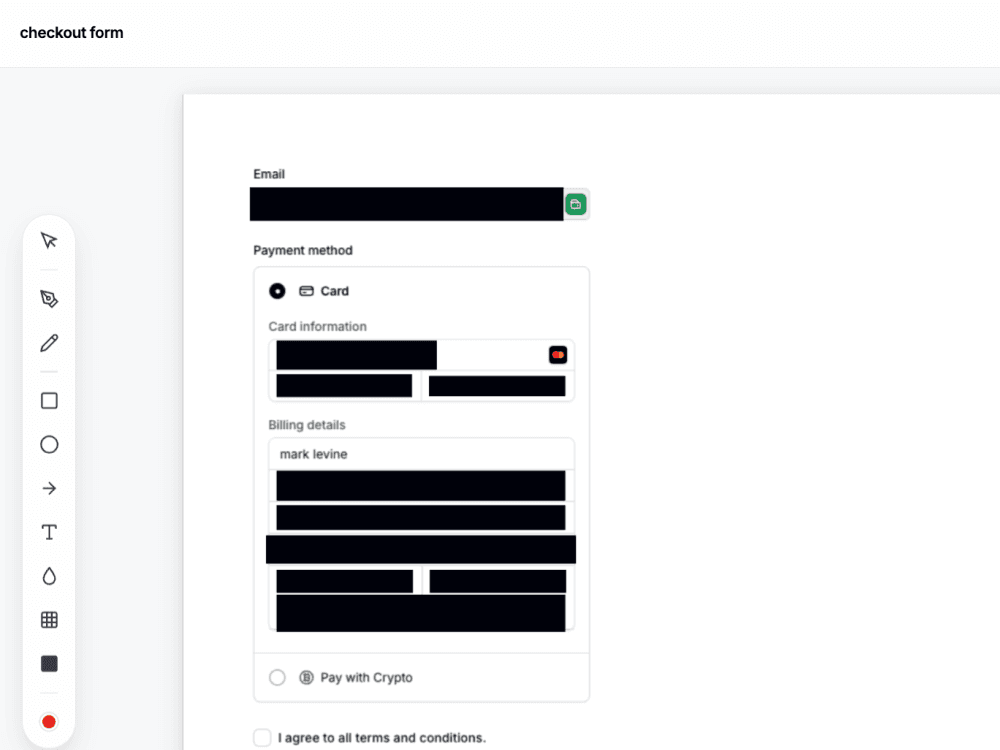
Step 3: Redact sensitive information
Staging environments often contain real-looking data. Before attaching a screenshot to Jira, Linear, or Slack:
- Blur email addresses, API keys, and user names
- Hide account numbers, prices, or internal IDs if the ticket is client-facing
- Check the browser URL bar — sometimes visible in full-page captures
SnapFrame's blur tool lets you drag a region and apply Gaussian blur in one move — no separate redaction app needed.
Step 4: Show before and after (when it helps)
Visual regressions are easier to triage with a side-by-side comparison. Instead of attaching two separate images, stitch them into one:
- Capture the current (broken) state
- Open SnapFrame's Side-by-Side Comparison tool (Pro)
- Upload the expected/previous version on the right
- Pan to align the relevant section and export as one image
Reviewers see both states in a single glance — fewer back-and-forth comments in the ticket.
Step 5: Export in the right format
- PNG — default for bug reports; lossless and readable at any zoom level
- PDF — useful for very tall full-page captures that need to go into formal docs (SnapFrame Pro auto-splits tall images across pages)
- JPG — smaller file size when attaching to email with size limits
SnapFrame exports at your display's device pixel ratio, so Retina and high-DPI screens produce sharp captures — critical when the bug involves small text or pixel-level UI issues.
Common mistakes to avoid
- Cropping too tight — leave enough context that a developer who hasn't seen the page understands the layout
- Forgetting the URL — add a source label or mention the page in the ticket description
- Low-resolution captures — zoomed-in blurry text wastes everyone's time
- Skipping redaction — one leaked email in a screenshot creates a privacy incident
- Attaching 12 separate images — stitch comparisons or annotate one clear image instead
Why browser-native beats desktop tools for web bugs
Desktop screenshot apps can't capture the actual rendered webpage with CSS, fonts, and scroll behavior intact. Browser extensions capture exactly what Chrome renders — including sticky headers, web fonts, and responsive breakpoints at your current window size.
A workflow that stays in the browser — capture, annotate, blur, export — is faster than screenshot → save → open Preview/Skitch → re-attach. For teams filing dozens of bugs a week, that difference compounds.
Stop tab-hopping for one screenshot
Capture, redact, and document — all in your browser, all in SnapFrame.
Start free. No account, no card, no catch.